How It Works
Ctrl+Shift+JCustom Prompts
Your prompts, one keystroke away.
Run your own prompts on any text, in your own voice.
How to use it.
01
Select your text
Anything you want your own prompt to run on.
02
Open Use Prompt
Press J on the toolbar, or Ctrl+Shift+J to rerun your last prompt.
03
Pick a prompt
From your saved prompts or the Library. Picking another reruns it on the same text.
Make it yours.
Use Prompt panel
Opens when you press J on the toolbar.
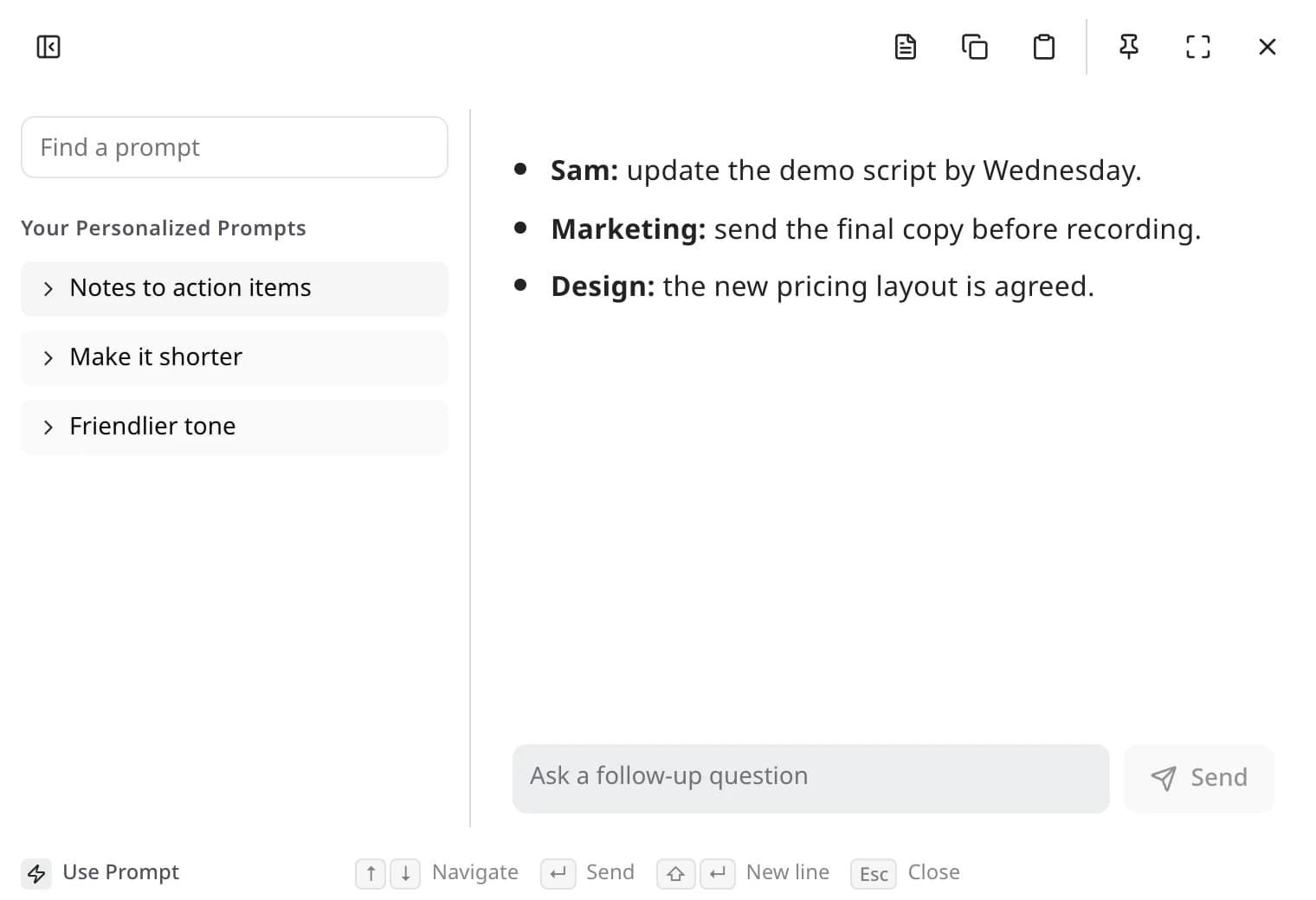
- Find a prompt
- Search your prompts and the Library in one list. Recent ones come first.
- Switch prompts
- Pick another one and it runs on the same text.
- Edit or customize
- Open a prompt to read it. Edit one of yours, or customize a Library prompt to make your own copy.
- Adjust it
- Ask for changes below the result.
- Sidebar
- Hide it or drag its edge to resize it. Edyt remembers both.
Toolbar page
Open Edyt and pick Toolbar in the sidebar.
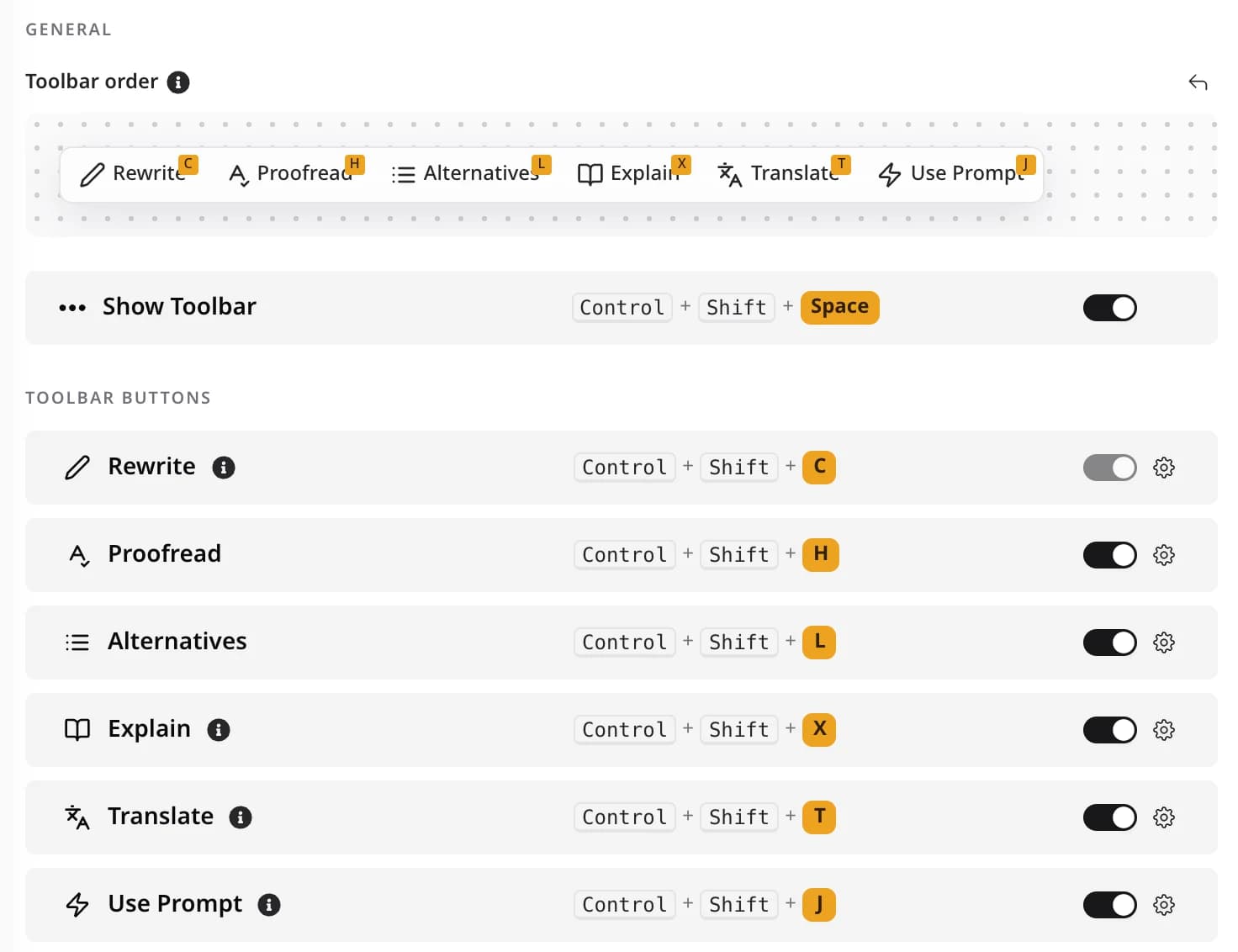
- Shortcut
- Ctrl+Shift+J by default. Click the gear next to Use Prompt to record a new one.
- Show or hide
- Switch Use Prompt off to take it off the toolbar. Its shortcut keeps working.
- Order
- Drag the buttons under Toolbar order to rearrange them. The arrow puts them back.
Custom Prompts questions
In Edyt under Prompts, or on the web on your Prompts page. They sync to every computer you sign in on.
Ctrl+Shift+J reruns the prompt you used last on the text you've selected.
More actions.
Rewrite
Fix the mistakes and keep your words
Ctrl+Shift+C
Proofread
See each problem, and why, before anything changes
Ctrl+Shift+H
Alternatives
Pick from a few different versions
Ctrl+Shift+L
Explain
Understand what something means
Ctrl+Shift+X
Translate
Read or reply in another language
Ctrl+Shift+T
Screen Reading
Use text you can't select, like a PDF or a screenshot
Try it on your own writing.
Free to download. Free to use. No credit card required.